- Home
- How to install
How to Install an Enterprise app on iOS
Some of our customers choose to distribute their iOS app on an Enterprise Developer Account. This causes a minor change to the downloading process.
Step 1
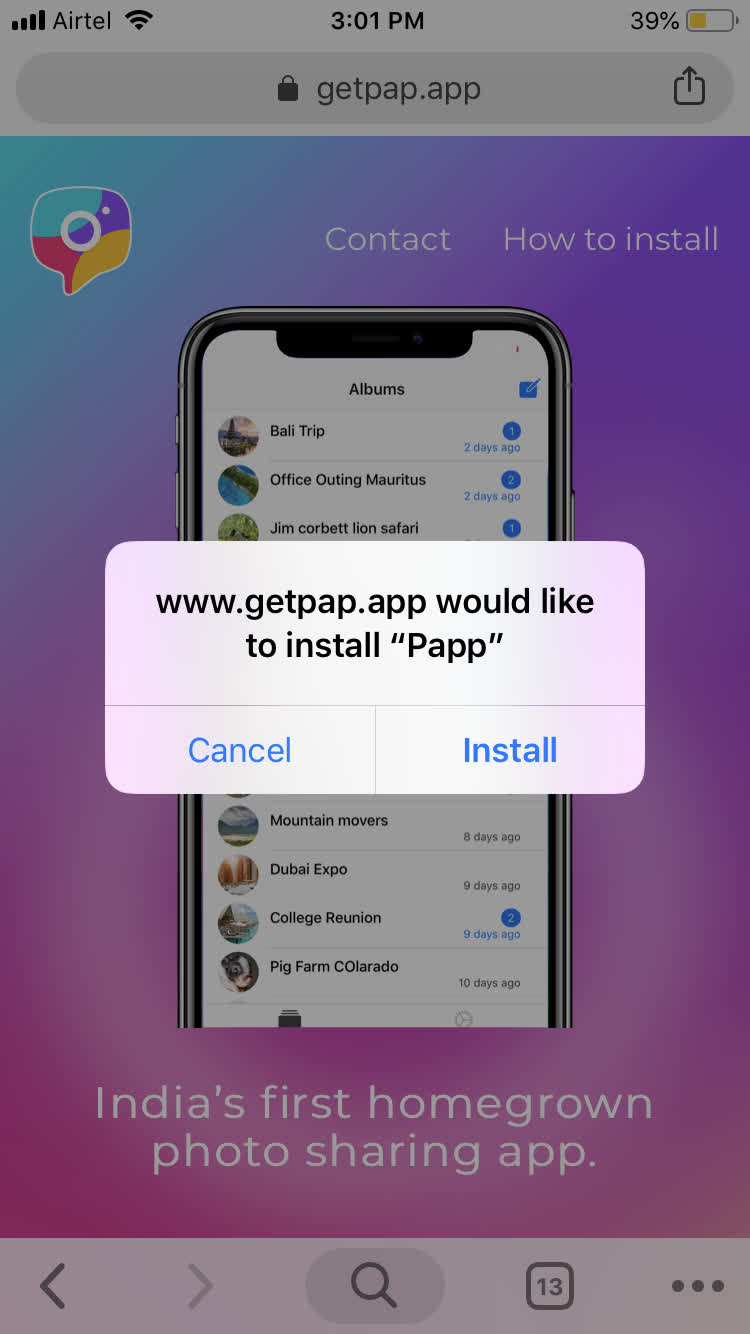
- Click the download link provided in the invitation email.
- This will prompt you to install the app. Select "Install."
Step 2
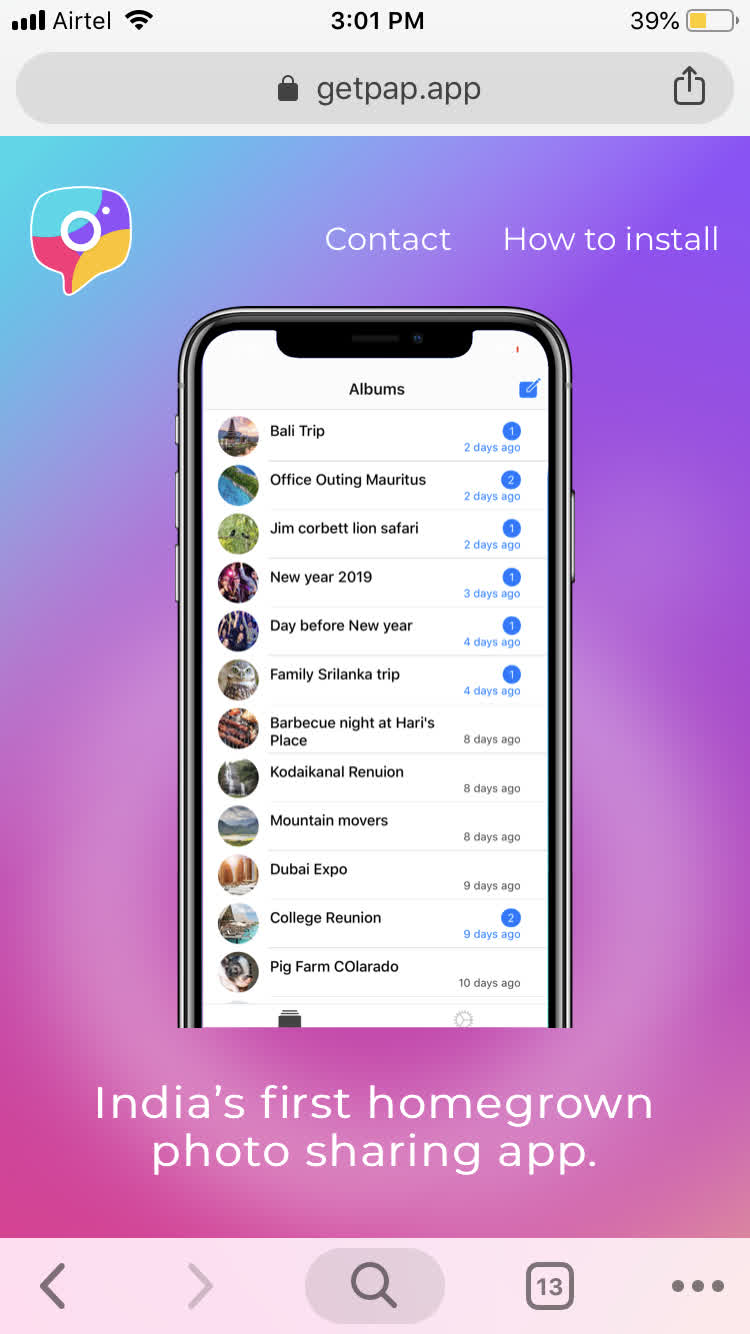
- After selecting install, you will see a blank browser.
- Close you browser and return to the home screen on your device.
Step 3
- On the home screen, you should now see the app icon indicating that the app is installing.

Step 4
- Once the app install finishes, launch the app.
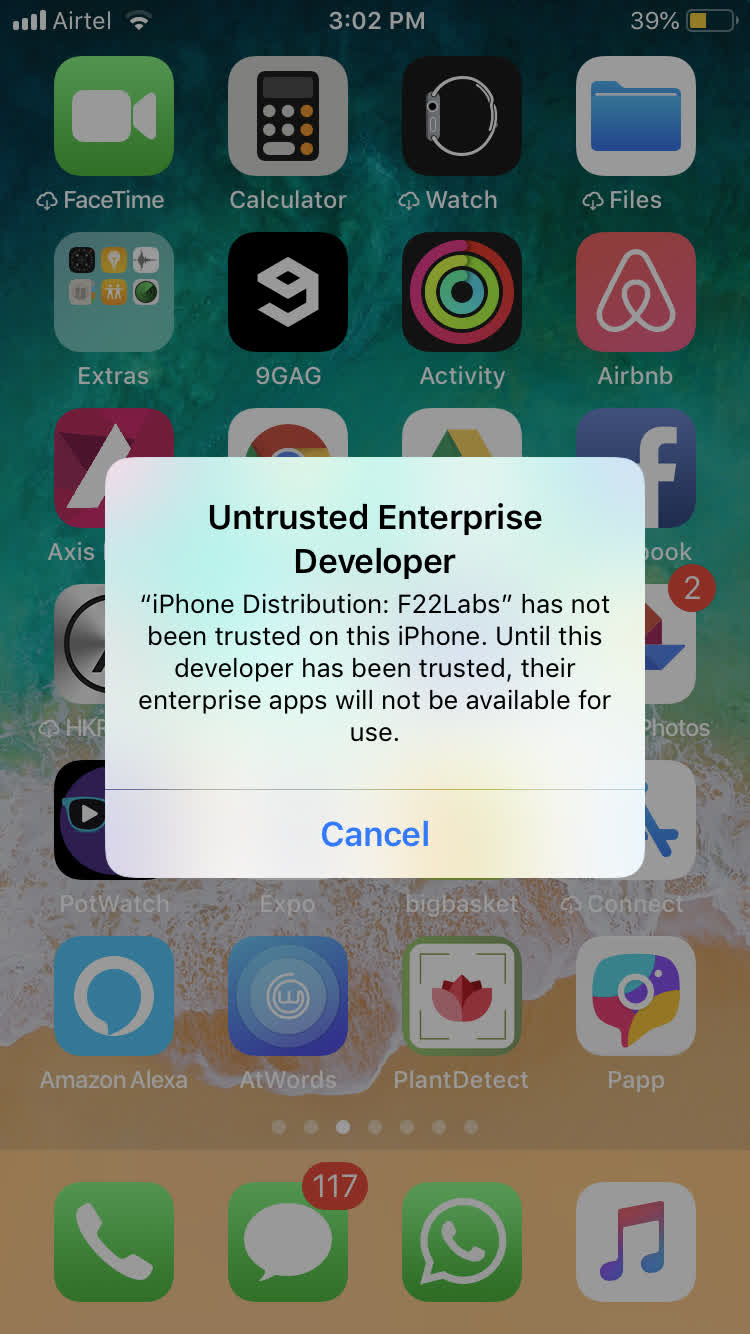
- If you have iOS 8, you will be asked to "Trust" the app immediately. If this is the case, select "Trust" and continue to Step 8 below.
- If you have iOS 9 or newer, you will see the message below. Continue to Step 5 for next steps.
Step 5
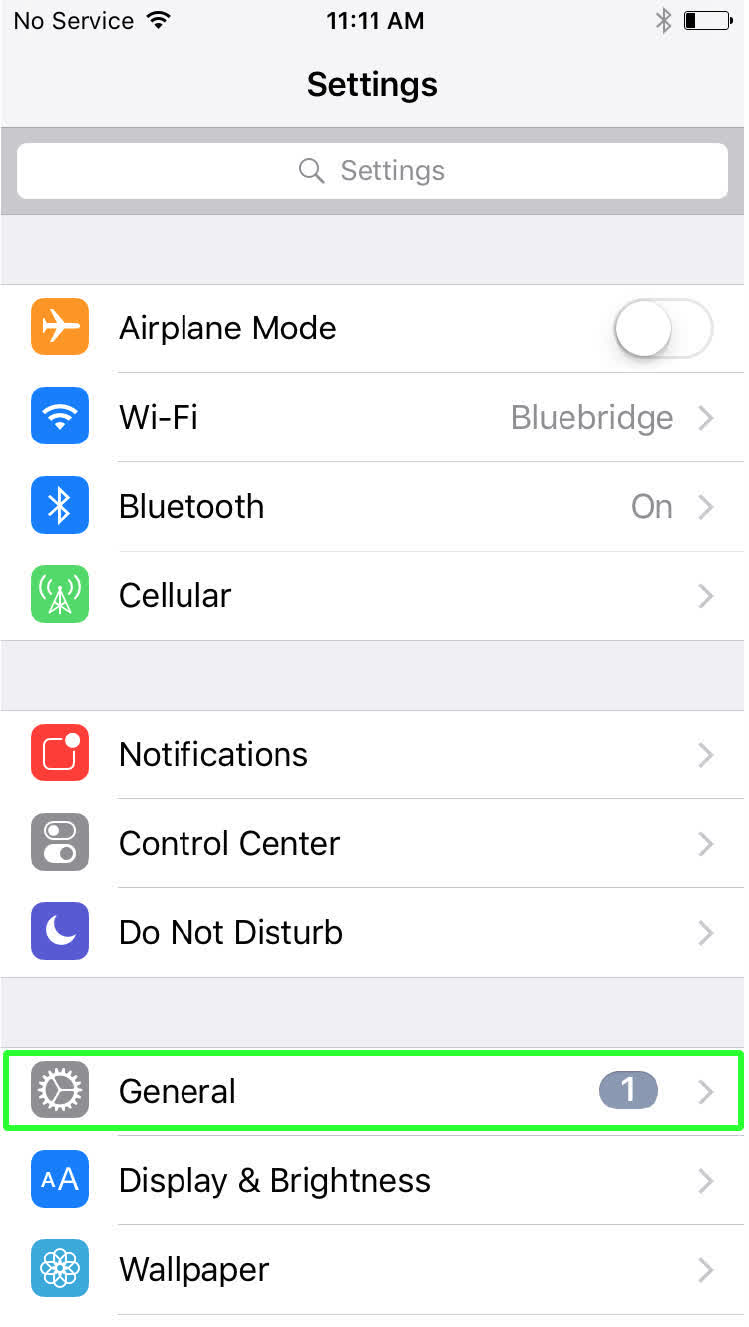
- Navigate to the Settings app on your device and tap on "General."
Step 6
- Next, scroll to "Profiles & Device Management." Note: Depending on your OS version, this may be called "Profiles" or "Device Management."
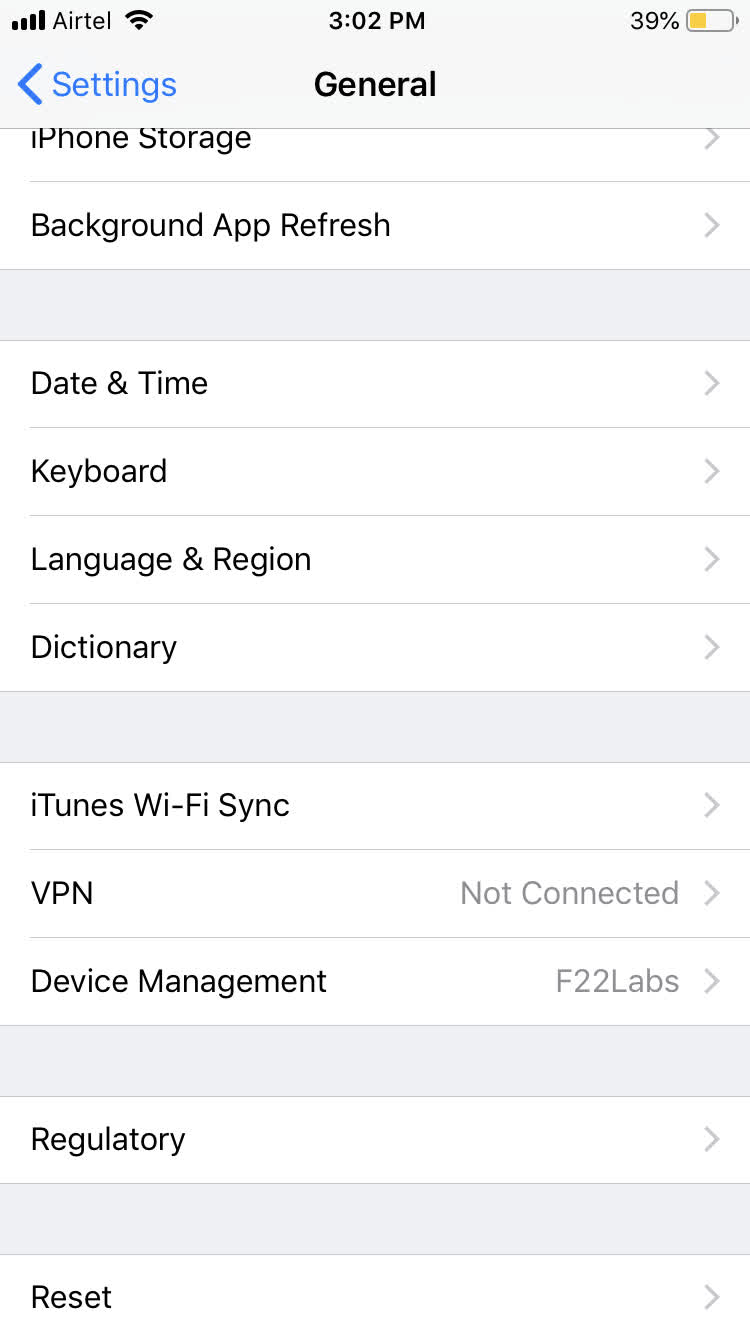
Step 7
- In the Enterprise App section, choose your company name.
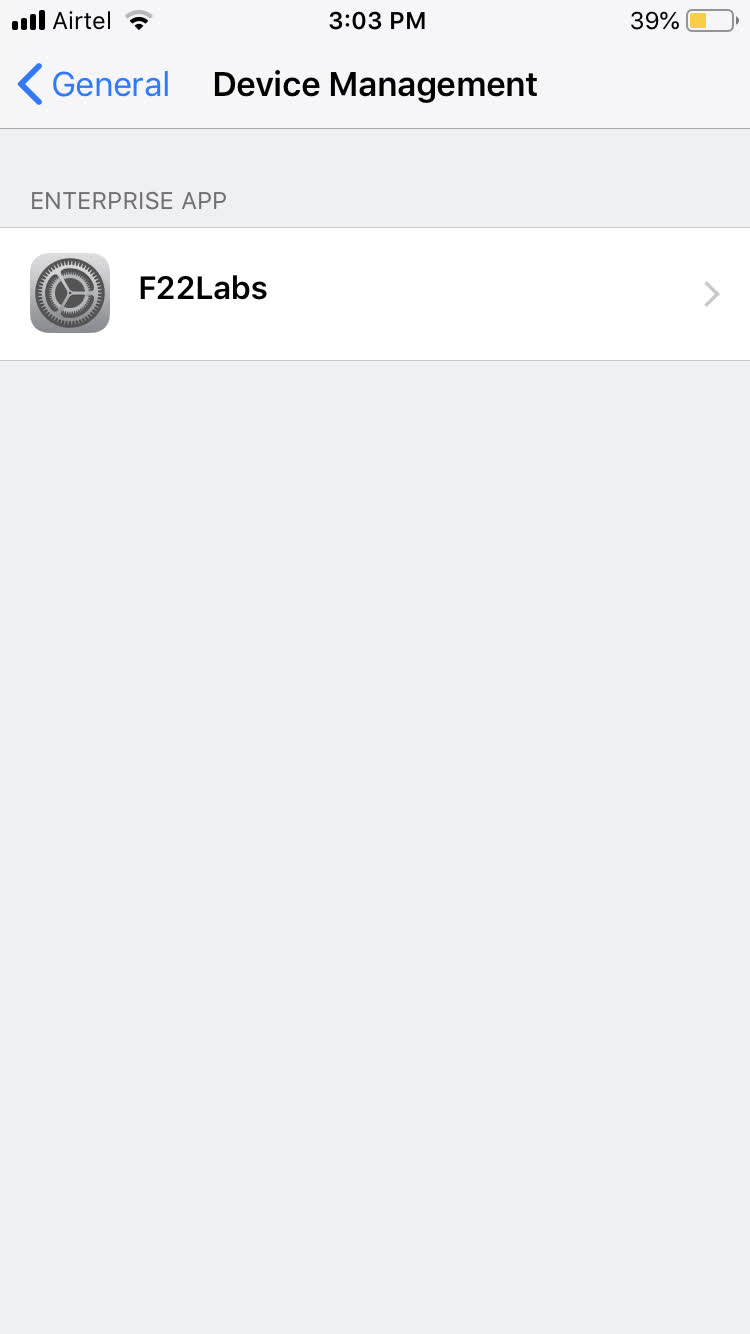
Step 8
- Tap "Trust." You can now launch the app and login.
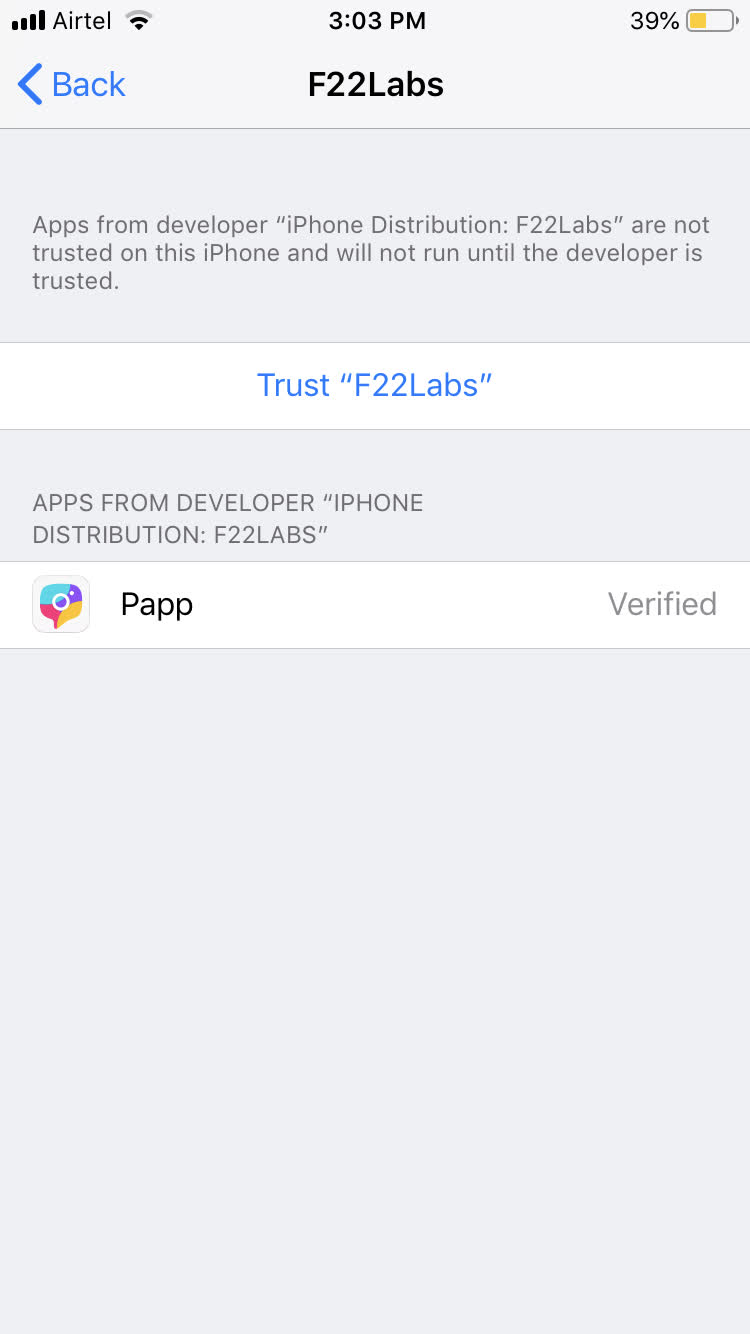
Things to Remember:
- This method for downloading only applies to apps that are being distributed through an Enterprise Accounts.
- If you're questioning if this might be a good distribution method for you and your end users, reach out to your Customer Success Manager. They will be able to walk you through what that entails.